Yes, you can make a phone call from your computer. The right method depends on who you need to reach: a browser calling service can dial ordinary landlines and mobile numbers, a linked-phone feature can relay your existing mobile line, and an app-to-app call works when both people use the same platform.
If you want to enter a real phone number and call it directly—especially an international number—the most flexible option is a browser phone service. The other person answers a normal phone call. They do not need the same app, a computer, or even a smartphone.
This guide explains each option, how to place the call, what it costs, and what to check before you dial.
Quick answer: four ways to call from a computer
| Method | Calls ordinary phone numbers? | Requires your phone? | Recipient needs the same app? | Best for |
|---|---|---|---|---|
| Browser phone service | Yes | No | No | Landlines, mobiles, and international calls |
| Mac or Windows linked-phone calling | Yes | Yes | No | Using your current mobile plan from your computer |
| Google Voice | Yes, for supported accounts and destinations | Not necessarily | No | Eligible users who already have Google Voice |
| App-to-app calling | Usually no | No | Usually yes | Calls where both people already share the app |
The important distinction is not computer versus phone. It is internet-to-phone calling versus app-to-app calling.
A browser phone service connects the call to the public phone network. That means it can reach a hotel desk, family landline, bank, airline, clinic, office, or mobile phone. An app-to-app service usually reaches only another account inside that app.
Method 1: call any phone number from your browser
Use this method when you want to call a landline or mobile from your computer without routing the call through your own phone.
Localcall browser calling lets you enter a real number, see the rate before connecting, and place the call from a supported browser. You can make a direct call, add live phone-call translation, or use an AI phone agent for a narrow task.
The recipient does not need Localcall. They answer through their normal landline or mobile service.
What you need
- A computer with a microphone and speakers, or a headset.
- A stable internet connection.
- A modern browser with microphone permission enabled.
- The complete phone number, including the country code for international calls.
- Calling credit for the destination and call mode you choose.
How to make the call
- Open the Localcall dialer in your browser.
- Allow microphone access when the browser asks.
- Enter the complete phone number.
- Check that the country and number format are correct.
- Review the per-minute rate shown for the number.
- Choose direct calling, live translation, or an AI phone agent.
- Start the call and use the on-screen keypad if you reach an automated menu.
Before an important call, use the phone number validator to catch formatting mistakes and the international call cost calculator to estimate the total.
What the recipient experiences
The recipient receives a regular phone call. They do not click a meeting link or install an app. This matters when you are calling:
- A landline that cannot run apps.
- A business number listed on a website.
- A hotel, airline, bank, or government office.
- An older relative with a basic mobile phone.
- An international contact who uses a different messaging platform.
- An automated phone menu that expects keypad input.
If your goal is simply to call a normal phone number from a computer, confirm that the service explicitly supports calls to landlines and mobiles. “Computer calling” can also describe video meetings and app-to-app voice chats, which are different products.
Method 2: use your computer as an extension of your phone
Apple and Microsoft provide ways to make calls on a computer by relaying them through a compatible smartphone. This can feel convenient because you keep your existing mobile number and carrier plan.
It is not independent browser calling. Your phone, carrier service, device settings, and sometimes Bluetooth or the same Wi-Fi network remain part of the call path.
Call from a Mac through an iPhone
Apple's Phone app on supported Macs can place calls through an iPhone. Apple says the devices must use the same Apple Account, have the relevant calling settings enabled, and meet its Wi-Fi or proximity requirements. You can dial on the Mac keypad, paste a number, or click a phone number on a webpage.
This method is a good fit when:
- You already have an iPhone and Mac.
- You want calls to use your current mobile number.
- Your mobile plan has acceptable domestic or international rates.
- You are comfortable keeping the devices linked.
Check your carrier's international pricing before calling another country. Using a computer does not automatically turn a carrier call into a cheaper internet call.
Call from Windows through Phone Link
Microsoft Phone Link lets supported Windows PCs make and receive calls through a connected Android phone or iPhone. Microsoft documents Bluetooth as part of the calling setup, along with device permissions.
This method is a good fit when:
- You want to use your current mobile line from your PC.
- Your phone is nearby and connected.
- Both devices have working Bluetooth.
- You already understand how the call will be billed by your carrier.
If Bluetooth disconnects, the phone is unavailable, or carrier service is poor, the computer calling experience can be interrupted.
Method 3: use Google Voice on a computer
Google Voice can place domestic and international calls from supported desktop browsers. It is useful for people who already have an eligible Google Voice account and number.
Google's help documentation lists Chrome, Edge, Firefox, and Safari as supported browsers for computer calls. International calls use destination pricing, and account availability varies by user type and region.
Google Voice may fit if:
- You already have an eligible account.
- You want to call from your Google Voice number.
- The destination and account type are supported.
- Its pricing and regional availability fit your needs.
Do not assume that every Google account includes Google Voice or that every call is free. Confirm account eligibility, balance, destination support, and routing before dialing.
Method 4: make an app-to-app voice call
Meeting and messaging services can make voice or video calls from a computer. These calls are often free because they stay inside the service instead of connecting to an ordinary phone number.
App-to-app calling is useful when:
- Both people already use the same service.
- The recipient has internet access.
- You do not need to reach a landline, business desk, or automated menu.
- A meeting link or account invitation is acceptable.
It is the wrong method when all you have is a phone number. A hotel front desk cannot join your private messaging app merely because its number appears online. For that job, use a service that reaches the phone network.
Can you call a landline from a computer?
Yes. A landline is simply one type of endpoint on the phone network. If your browser calling provider connects to that network and supports the destination, the recipient can answer on a traditional fixed phone.
You do not need a separate “landline calling” workflow. Enter the complete number, check the detected destination and line type, review the rate, and dial.
Landline calling from a computer is especially useful for:
- Hotels, restaurants, clinics, and offices.
- Family members who do not use smartphones.
- Rural destinations where fixed lines remain common.
- Businesses that publish a main desk number instead of a mobile contact.
Some special, premium, toll-free, emergency, or short-code numbers may have different routing rules. Check support for the exact number instead of assuming that every numeric sequence is reachable.
Can you call a mobile phone from a computer?
Yes. A browser calling service can connect to an ordinary mobile number just as it connects to a landline. The recipient answers in their normal Phone app through their mobile carrier.
Mobile and landline rates may differ within the same country. Let the service identify the line type and show the exact rate before you connect.
How to call an international number from a computer
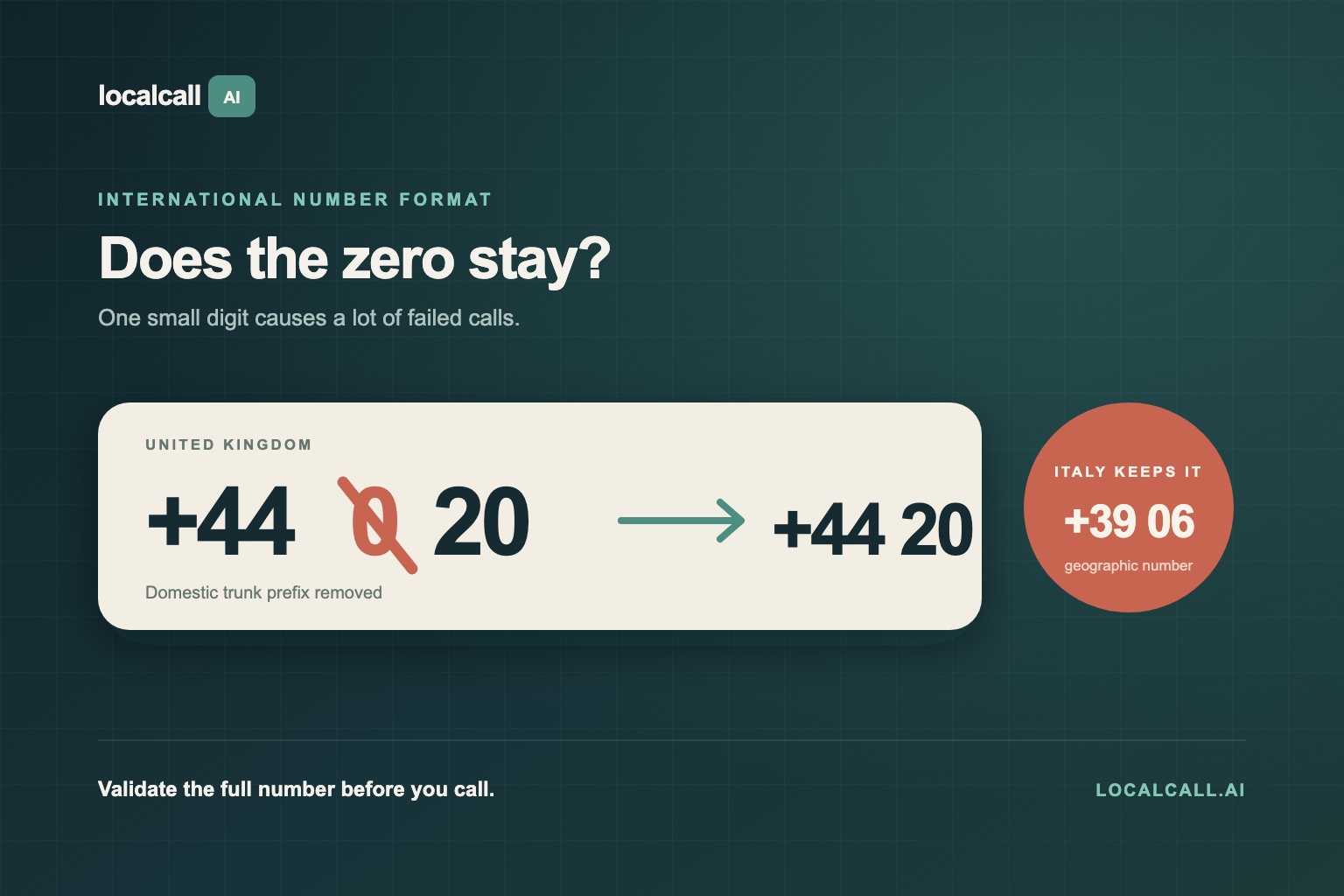
Use international format even if the number was written locally.
The usual structure is:
+ country code + area or mobile code + subscriber number
For example, a number written with a domestic leading zero may require that zero to be removed when you add the country code. The precise rule depends on the destination.
Follow this checklist:
- Start with the plus sign.
- Add the destination country code.
- Add the area code or mobile prefix.
- Add the remaining subscriber number.
- Remove a domestic trunk prefix when the country's dialing plan requires it.
- Validate the complete number before calling.
Localcall maintains country-by-country dialing guides and destination rates for international calls from a computer.
Check more than the number
Before placing an international call, also check:
- Local time: A correctly formatted call can still fail because the office is closed.
- Line type: Mobile and landline prices can differ.
- Call purpose: A direct call, translated call, and AI-agent call solve different jobs.
- Language: Set up live translation before dialing if the other person speaks another language.
- Expected duration: Estimate the cost of a five-, ten-, or twenty-minute call.
How much does it cost to call from a computer?
The price depends on how the call reaches the other person.
- Browser-to-phone: Usually billed per minute based on destination, line type, and optional features.
- Linked smartphone: Uses your carrier plan and may trigger long-distance or roaming charges.
- Google Voice: Uses Google Voice rates for supported calls and accounts.
- App-to-app: Often free, although both people need internet access and the same service.
“Calling over the internet” does not necessarily mean “calling any phone number for free.” Connecting an internet session to a landline or mobile carrier has a real network cost. The useful comparison is the complete price for the exact destination—not whether the product uses Wi-Fi.
Improve call quality before you dial
A computer call depends on your microphone, speakers, browser permission, and connection. Test them before a reservation, support call, or long international conversation.
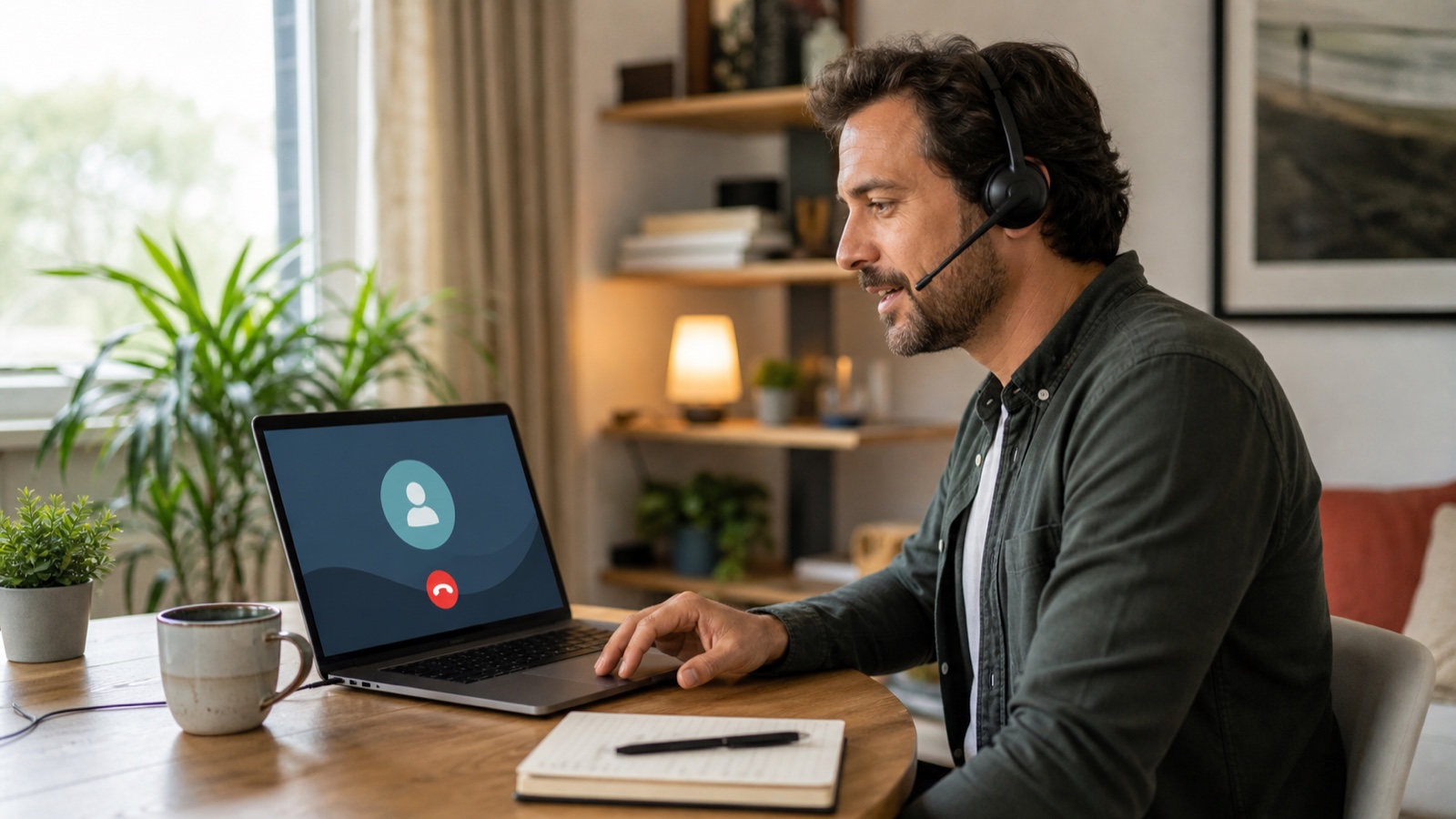
Use a headset when possible
A headset keeps the microphone close to your mouth and reduces echo from computer speakers. Wired headsets are the simplest option. Bluetooth headsets work well when they are charged and selected as both the browser's input and output device.
Check browser microphone permission
If the other person cannot hear you:
- Select the site-information or permission icon beside the browser address.
- Confirm that microphone access is allowed.
- Select the correct microphone in your computer settings.
- Close other apps that may be using the microphone.
- Reload the dialer after changing permission.
Use the browser microphone test before the call if you are unsure.
Reduce network congestion
Pause large downloads, cloud backups, and high-resolution video streams. Move closer to the Wi-Fi router or use a wired connection when the call is important. If the audio begins breaking up, avoid speaking over the other person and allow a moment for the connection to recover.
Privacy and safety checks
Use the same care you would use on a normal phone call:
- Confirm that the website is the service's official secure domain.
- Do not read passwords, full card security codes, or one-time login codes aloud.
- If you are calling a bank, airline, insurer, or government office, get the number from its official website or app.
- Ask before recording a call and follow the laws that apply to everyone on the call.
- Use professional interpretation when a legal, medical, immigration, or other high-stakes decision requires it.
Do not rely on Localcall, Google Voice, Phone Link, or another internet-based calling workflow for emergency services. Use the local emergency number and a supported primary phone service.
Which computer calling method should you choose?
Choose a browser phone service when you have a real landline or mobile number, want to call without linking your phone, need international rates shown upfront, or want live translation.
Choose Mac or Windows linked-phone calling when you want to use your existing mobile number and carrier plan from a larger screen.
Choose Google Voice when you already have an eligible account and its supported destinations and pricing fit the call.
Choose app-to-app calling when both people already use the same platform and neither person needs to connect to an ordinary phone number.
For a direct call to a real number, open the Localcall browser dialer, validate the number, check the rate, and choose the call mode that matches the conversation.